
Too Long? Read This First
- The WhatsApp Web QR Code lets you access WhatsApp on your computer by scanning the code on web.whatsapp.com using your phone.
- It helps you sync chats instantly, type messages faster, and share files easily while keeping conversations end-to-end encrypted.
- To connect, go to Linked Devices in your WhatsApp app and scan the QR code shown on your browser screen.
- If the QR code does not scan, check your internet connection or update WhatsApp on your phone.
Tired of juggling your phone while working on your laptop? The solution is the WhatsApp Web QR code. It is a quick way to link your WhatsApp account to a computer.
In this guide, you will learn what the WhatsApp Web QR code is, how to use it, and how to fix it if it does not scan or connect properly.
Understanding the WhatsApp Web QR Code
The WhatsApp Web QR code is a scannable code that connects your mobile WhatsApp account to a web browser. To link your WhatsApp account to WhatsApp Web, visit web.whatsapp.com, point your phone’s camera at the QR code displayed on the screen, and your WhatsApp will open on your computer.
How Does the WhatsApp Web QR Code Make Messaging Easier?
Here are a few reasons people choose to use WhatsApp Web through a QR code:
Benefits | What does it mean? |
Instant Login | No need to type credentials. Scanning the QR code takes only a few seconds |
Sync Chats Easily | Chats and media files appear instantly on your computer |
Better Productivity | Using WhatsApp web on a desktop and multitasking across tabs saves time |
Safe and Private | All messages remain end-to-end encrypted even on WhatsApp Web |
Easy File Sharing | Quickly drag and drop photos, PDFs, and documents from your computer. |
How to Use the WhatsApp Web QR Code to Log In?
Follow these steps to connect WhatsApp to your computer using the QR code.
1. Open WhatsApp Web on Your Browser
Go to web.whatsapp.com.
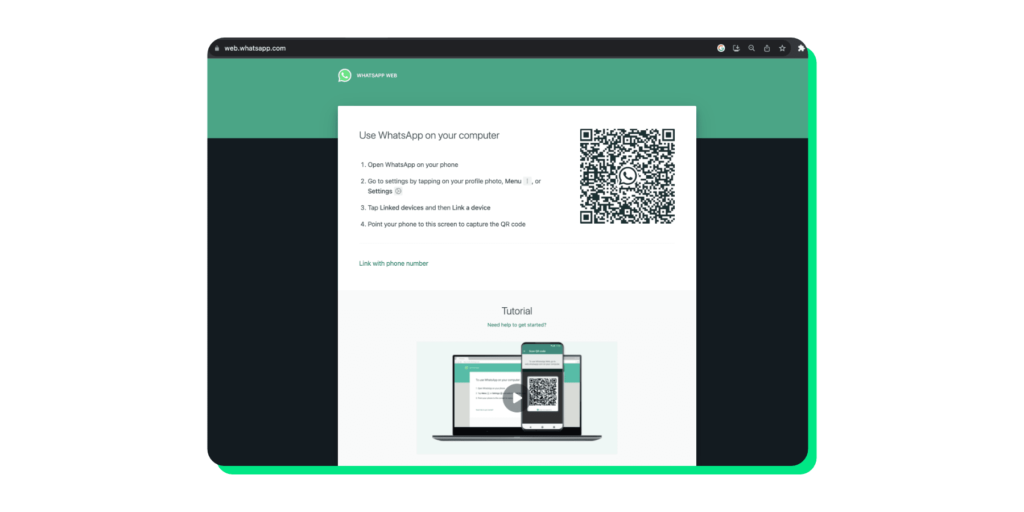
You will see a black and white QR code appear on your screen.
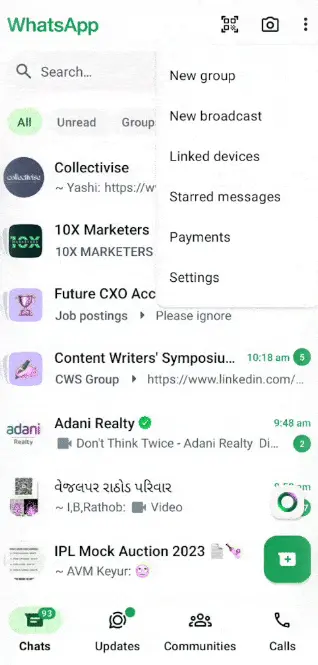
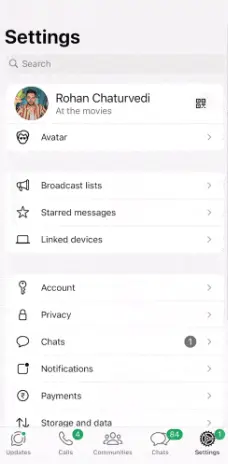
2. Open WhatsApp on Your Phone
- Android: Tap the three dots in the top-right corner and select Linked Devices.
- iPhone: Tap Settings at the bottom-right corner and select Linked Devices.
3. Tap “Link a Device”
This will open your phone’s camera within the WhatsApp app.
4. Scan the QR Code
Point your phone toward the QR code on your computer screen and hold it steady.
Once the code is recognized, your WhatsApp will open in the browser and sync automatically.
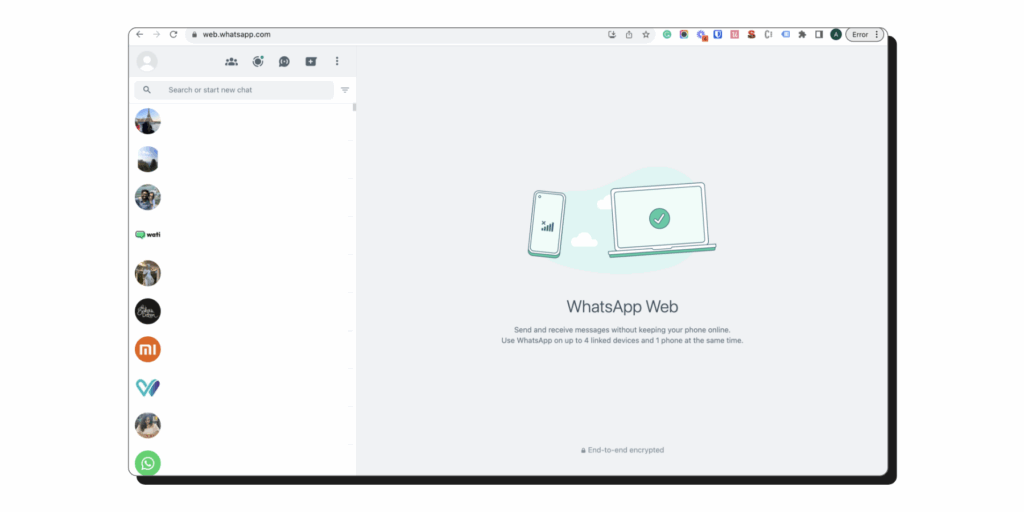
Note: Make sure your phone is connected to the internet during the initial linking process. Once a device is linked through Linked Devices (multi-device), you can continue using that session even if your phone goes offline. |
WhatsApp also features a multi-device option that allows for limited use without keeping your phone online.
Quick Fixes for Common Issues
If your WhatsApp Web QR code does not scan or connect, try these quick fixes.
1. QR Code Not Scanning
- Clean your phone’s camera lens.
- Increase your desktop or laptop’s screen brightness.
- Refresh the QR code by clicking the circular arrow icon.
- Align your phone so the entire code fits inside the frame.
2. Connection Problems
- Make sure both your phone and computer are connected to the internet.
- Clear your browser cache and restart the browser.
- Check if your WhatsApp app is updated.
3. Using Public or Office Wi-Fi
Some office or public networks may block WhatsApp Web. Try switching to your mobile hotspot or another Wi-Fi connection.
Smart Security Practices for WhatsApp Web Users
Since the QR code logs you in instantly, it is important to keep your account secure.
- Avoid using WhatsApp Web on public or shared computers.
- Always log out after use, either from your browser or from the Linked Devices section on your phone.
- Turn on two-step verification in WhatsApp settings.
- Check active sessions regularly and remove unknown devices.
- Keep your phone locked and protected with biometric security features.
QR Code Not Loading? Here’s How to Fix It
If the QR code itself does not appear on the WhatsApp Web page:
- Turn off browser extensions temporarily.
- Make sure cookies and JavaScript are enabled.
- Try using incognito mode or a different browser, such as Chrome, Firefox, or Edge.
- Restart your computer or router.
If you prefer sharing clickable links instead of QR codes, try using our Free WhatsApp Link Generator.
It lets you create custom WhatsApp links that are perfect for websites, emails, and social media bios.
Turn Every Touchpoint Into an Opportunity with WhatsApp QR Codes
If you use WhatsApp Business, QR codes can be even more useful.
You can:
- Add your WhatsApp QR code to your website or receipts.
- Include it in your Instagram bio or email signature.

- Let customers scan it to start chatting without saving your number or to explore your product.
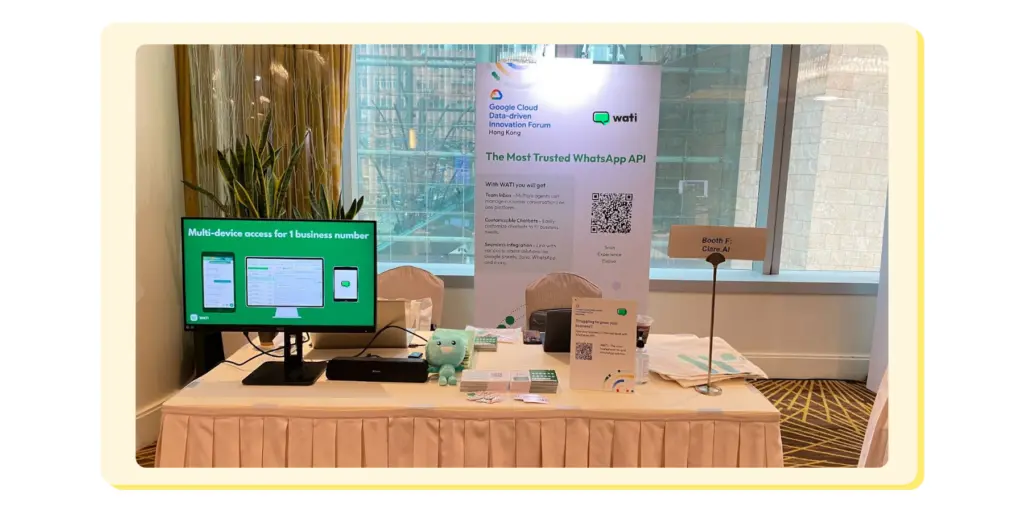
By adding WhatsApp QR codes across your digital and physical touchpoints, you give people an instant way to reach you. It makes your business more accessible.
You can easily design one for your business using our free WhatsApp QR code generator.
Every QR scan can start a conversation or build a connection. If you handle a lot of customer conversations, the WhatsApp Business API can help you automate and manage them easily.
Wrapping It Up
The WhatsApp Web QR code is a small feature that makes a big difference.
Whether you are chatting with friends or managing customers, this simple tool can help you stay efficient. If you want to take your WhatsApp experience further, explore Wati for automation, analytics, and team collaboration built for WhatsApp.
Frequently Asked Questions
1. What is a WhatsApp Web QR code used for?
The WhatsApp Web QR code helps you log in to WhatsApp on your computer without a password. You simply scan the code displayed on web.whatsapp.com using your phone, and your chats appear instantly on the desktop.
2. Can I use WhatsApp Web without scanning the QR code?
No, the QR code is required to link your WhatsApp account with the computer. However, once linked, you do not need to rescan every time unless you log out or clear browser data.
3. Is it safe to scan a WhatsApp Web QR code?
Yes. WhatsApp Web uses end-to-end encryption just like the mobile app. Always scan QR codes only from the official web.whatsapp.com site and log out when using public or shared computers.
4. Why is my WhatsApp QR code not scanning?
This usually happens due to lighting issues, dirty camera lenses, or unstable internet connections. Try refreshing the QR code, cleaning your camera, and ensuring both devices are online.
5. Can I use WhatsApp Web if my phone is switched off?
Once a device is linked through Linked Devices (multi-device), you can use WhatsApp Web even when your phone is offline. You will still need your primary phone for the initial linking process and certain account actions.
6. How do I log out of WhatsApp Web?
On your computer, click the three-dot menu in WhatsApp Web and choose Log Out. You can also go to Settings > Linked Devices on your phone and select Log Out from all devices.
7. What browsers work best for WhatsApp Web?
WhatsApp Web works smoothly on Google Chrome, Firefox, Microsoft Edge, and Safari. Make sure your browser is updated to the latest version.
Frequently asked questions
1. What is a WhatsApp Web QR code used for?
The WhatsApp Web QR code helps you log in to WhatsApp on your computer without a password. You simply scan the code displayed on web.whatsapp.com using your phone, and your chats appear instantly on the desktop.
2. Can I use WhatsApp Web without scanning the QR code?
No, the QR code is required to link your WhatsApp account with the computer. However, once linked, you do not need to rescan every time unless you log out or clear browser data.
3. Is it safe to scan a WhatsApp Web QR code?
Yes. WhatsApp Web uses end-to-end encryption just like the mobile app. Always scan QR codes only from the official web.whatsapp.com site and log out when using public or shared computers.
4. Why is my WhatsApp QR code not scanning?
This usually happens due to lighting issues, dirty camera lenses, or unstable internet connections. Try refreshing the QR code, cleaning your camera, and ensuring both devices are online.
5. Can I use WhatsApp Web if my phone is switched off?
Once a device is linked through Linked Devices (multi-device), you can use WhatsApp Web even when your phone is offline. You will still need your primary phone for the initial linking process and certain account actions.
6. How do I log out of WhatsApp Web?
On your computer, click the three-dot menu in WhatsApp Web and choose Log Out. You can also go to Settings > Linked Devices on your phone and select Log Out from all devices.
7. What browsers work best for WhatsApp Web?
WhatsApp Web works smoothly on Google Chrome, Firefox, Microsoft Edge, and Safari. Make sure your browser is updated to the latest version.
Related posts
- Atendimento ao cliente: o que é e como melhorar na prática
Atendimento ao cliente é um dos fatores que mais influencia a percepção que o consumidor tem de uma marca, e também um dos que mais sofreram transformação nos últimos anos. O consumidor de hoje chega com expectativas bem definidas: quer rapidez, contexto e, acima de tudo, resolução. Esse movimento coloca o atendimento em um papel …
- What Platform Lets Me Build a WhatsApp Agent That Automatically Syncs Conversations and Lead Data to My CRM?
Stop losing chat context. Build a no-code WhatsApp AI agent with Astra by Wati that automatically syncs qualified leads, summaries, and history to your CRM.
- The Most Reliable WhatsApp API Platform for Mid-Market Marketing Teams
Mid-market marketing teams are constantly seeking an edge in engaging customers effectively, yet many struggle with fragmented communication channels and inefficient workflows. The search for a reliable WhatsApp API platform is not just about connectivity; it is about transforming engagement into tangible business growth. Wati stands as a powerful, highly capable solution, offering capabilities specifically …
- What platform lets me build a fully automated WhatsApp sales agent that takes leads from first message to meeting booked?
Astra by Wati is a powerful platform that lets you build and deploy a fully automated WhatsApp sales agent capable of taking leads from the first message to a booked meeting. It uses action-oriented AI and native integrations to qualify prospects and schedule appointments directly in chat, without requiring any coding. Introduction Modern sales teams …

Ashwin Suthanthiraraj
Ashwin is a content marketer at Wati. He writes content that shows businesses how to talk to customers on WhatsApp for marketing, sales, and support. A lifelong storyteller, he’s always looking for fresh ways to make complex ideas simple. In his free time, he enjoys travelling, cooking new food, or playing with his dog.