
Too Long? Read This First
- The WhatsApp Account Info Report gives a detailed view of your account data, including phone number, profile information, privacy settings, and linked devices.
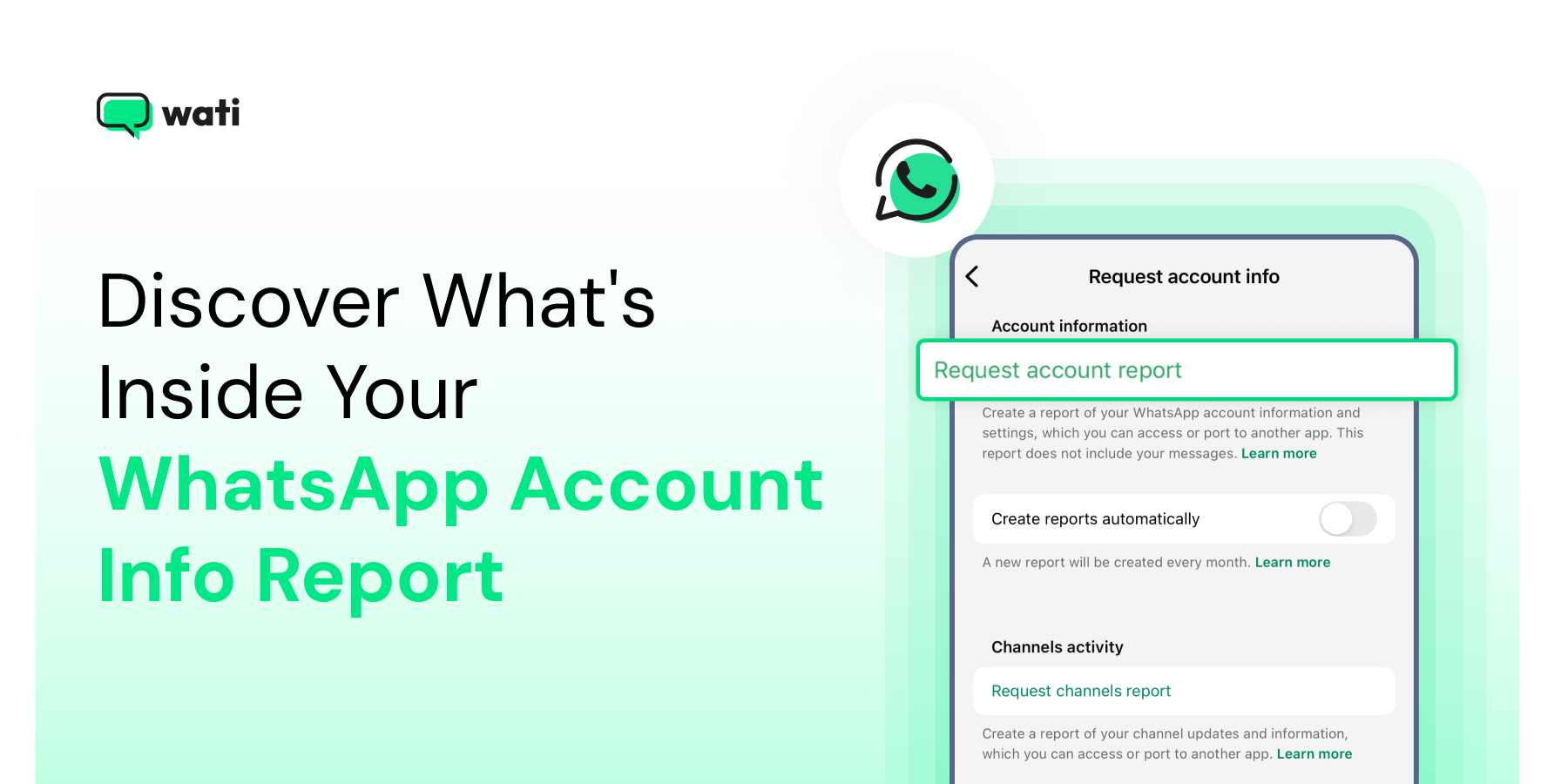
- You can request the report by going to Settings > Account > Request Account Info on your phone. WhatsApp usually prepares it within three days.
- The report is available for a limited time, so download it as soon as you receive the notification.
- Keep your report in a secure folder and avoid sharing it through email or public cloud storage.
- Turn on two-step verification to add an extra layer of protection for your account.
WhatsApp stores more information about your account than you might expect.
The WhatsApp Account Info Report lets you review these details in one place, including your phone number, device data, linked devices, and privacy settings.
This guide explains what the report contains, when it’s useful, and how to request and download it safely, whether you’re a personal user or managing a WhatsApp business account.
What is a WhatsApp Account Info Report?
A WhatsApp Account Info Report is a detailed summary of your account data. According to the official WhatsApp Help Center, your Account Info Report includes your account details and settings.
The major elements of the reports are the following.
1. Account Information
This section gives you a snapshot of your basic details, such as your registered phone number, profile name, and account creation date. It may also include information like your device type and WhatsApp version.
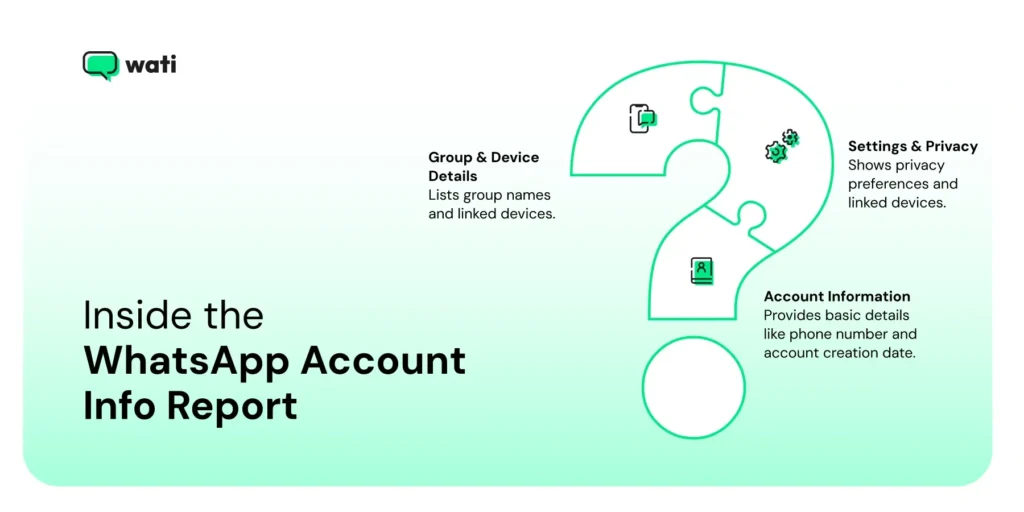
2. Settings and Privacy Information
Here you’ll find your privacy preferences, including who can see your last seen, profile photo, about, and status. It may also show whether you’ve enabled read receipts or linked any companion devices through WhatsApp Web or multi-device mode.
Bonus Read: WhatsApp Business Web: How To Use It For Your Business
3. Group and Linked Device Details
If you’re part of multiple groups, the report may include a list of group names. You might also see which devices are currently linked to your account.
Also Check Out: WhatsApp Broadcast vs Group: How are they Different for Businesses?
What Does the WhatsApp Account Info Report Not Include?
While the WhatsApp Account Info Report provides useful details about your account and activity, it does not include your actual conversations.
The report does not contain chat messages, media files, or the content of your conversations. WhatsApp messages are protected with end-to-end encryption, which means even WhatsApp cannot access the content of your chats.
Instead, the report focuses on account-related information and activity metadata, such as your profile details, privacy settings, linked devices, and group participation. This allows users to review how their account is being used without exposing private conversations.
How to Request Your WhatsApp Account Info Report?
WhatsApp lets you request your account info directly from the app.
This section explains where to find the option and how the request process works.
1. Start by opening the WhatsApp app on your mobile device.
2. On Android, tap the three dots in the top-right corner and choose Settings. If you’re using an iPhone, tap the gear icon at the bottom to open the same menu.
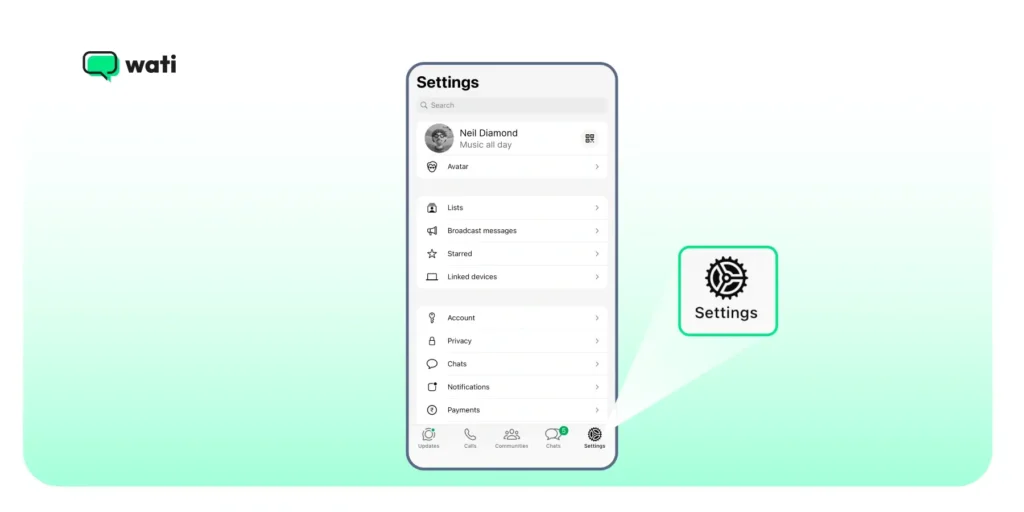
3. In the Settings menu, tap Account, then select Request Account Info.
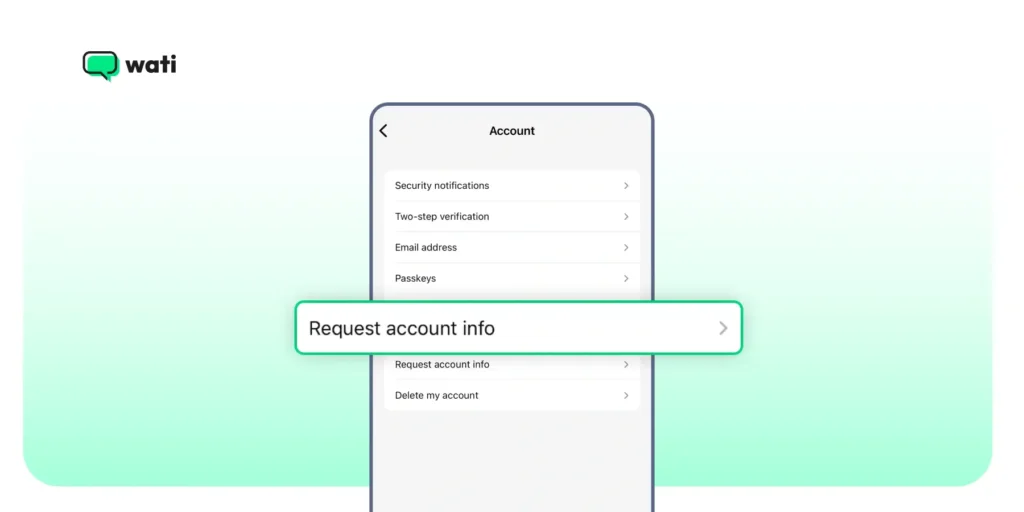
4. Tap Request Report to confirm.
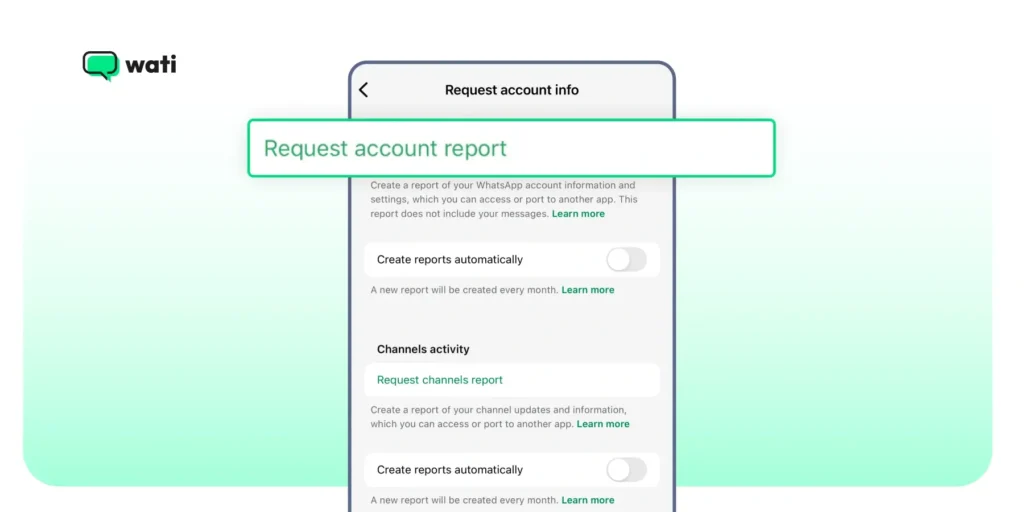
5. WhatsApp will begin creating your account information file. The process usually takes about 3 days, so you’ll need to wait until you receive a notification saying it’s ready.
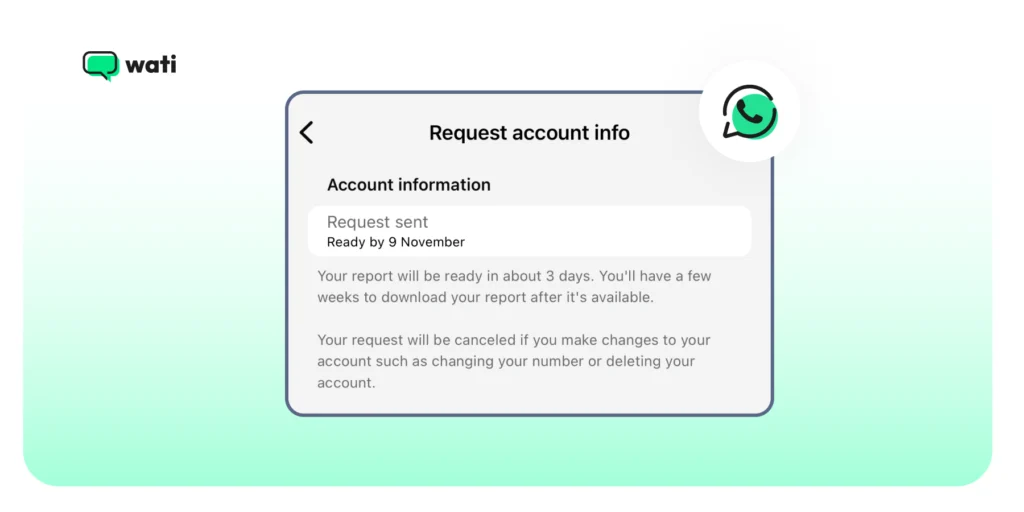
6. When you get the alert, go back to the Request Account Info section. Tap Download Report to save it.
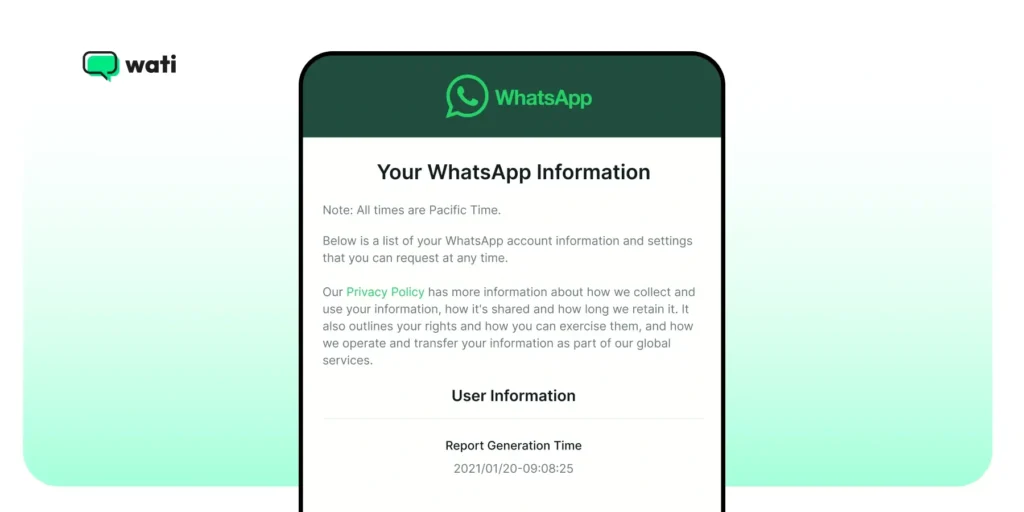
You’ll receive a ZIP file that contains two items, one in HTML format (easy to view in a browser) and another in JSON format.
Note: Account info requests aren’t supported on WhatsApp for Windows or Mac. Use your phone or WhatsApp Web to access this feature.
Tip: You can set up an automatic monthly report generation. Go to WhatsApp Settings, tap Account, and select Request Account Info.
Under Account Information, toggle on “Create Reports Automatically.” A new report is generated monthly until you decide to turn off this feature.
Expiration Timeline
Your report will be available for a limited time only before it is deleted from WhatsApp’s servers. Make sure you download it as soon as you receive the notification.
Viewing Tips
- Always open the file offline to protect your privacy.
- Avoid sharing it via public cloud or messaging apps.
What to Do if You Spot Irregularities in Your WhatsApp Account Info Report?
If you notice unfamiliar activity in your WhatsApp Account Info Report, do not ignore it. Unrecognized devices, unexpected account changes, or unknown groups could indicate that someone else accessed your account.
Taking a few quick steps can help you secure your account and prevent unauthorized access.
1. Check and Remove Unknown Linked Devices
One of the first things you should review is the Linked Devices section. This shows every device currently connected to your WhatsApp account through WhatsApp Web or WhatsApp Desktop.
If you see a device you do not recognize, remove it immediately.
Steps to remove unknown linked devices:
- Open WhatsApp
- Go to Settings
- Tap Linked Devices
- Review the list of active devices
- Tap the device you don’t recognize
- Select Log Out
This will instantly disconnect that device from your account.
2. Enable Two-Step Verification
Two-step verification adds an extra layer of protection to your WhatsApp account. With this feature enabled, anyone trying to register your phone number on WhatsApp will need a 6-digit PIN that only you know.
Steps to enable two-step verification:
- Open WhatsApp
- Go to Settings
- Tap Account
- Select Two-Step Verification
- Tap Enable
- Set a 6-digit PIN
- Add an optional recovery email
This helps prevent unauthorized logins even if someone gets access to your phone number.
3. Reverify Your Account if You Suspect Unauthorized Access
If you believe someone may have gained access to your account, the safest step is to verify your phone number again.
Simply reinstall WhatsApp and log in using your phone number. When you verify your number through the SMS code, any other active session using your account will automatically be logged out.
4. Contact WhatsApp Support
If suspicious activity continues or you cannot regain full control of your account, contact WhatsApp support directly.
Steps to reach support:
- Open WhatsApp
- Go to Settings
- Tap Help
- Select Contact Us
- Describe the issue and submit your request
You can also visit the WhatsApp Help Center for additional guidance.
5. Request Your Account Info Report Regularly
Requesting your WhatsApp Account Info Report occasionally can help you monitor account activity and settings.
The report is not generated automatically, but you can request a new one whenever you want from the Request Account Info section in WhatsApp settings. Reviewing it periodically helps you spot unusual changes early.
Why WhatsApp Introduced the Account Info Report?
The Account Info feature was introduced to give people an easy way to see what details WhatsApp keeps about their accounts. Instead of guessing what information is stored, users can now download a simple report.
This idea fits in with global privacy efforts like the European Union’s Digital Services Act and the General Data Protection Regulation (GDPR), which came into effect in 2018 and encourages companies to give users more control over their data.
When Can You Use WhatsApp Info Report?
You won’t need the WhatsApp Account Info Report all the time. But in certain cases, having it handy can really help.
1. For Personal Use
There are a few simple reasons you might want to request your WhatsApp Account Info Report.
- Understand what details WhatsApp actually stores about your account, which can be useful if you are curious about your data or reviewing your privacy settings.
- Many people also choose to download it when they are moving to a new phone or changing their number, just to have a clear record of their account information.
- It can also be part of a personal privacy check if you like staying aware of what’s stored under your name.
2. For Business Accounts
- It helps the businesses confirm that your venture details and linked devices are correctly set up.
- Ensures transparency by maintaining an updated record of your WhatsApp Business setup for governance and documentation purposes.
- Useful for reviewing account performance and ensuring customer-facing information is current.
What’s Included in the WhatsApp Account Info Report?
When you download your report, you’ll get a .zip file containing two files:
- AccountInfo.html – an easy-to-read version of your report
- AccountInfo.json – a structured version for technical or compliance use
Here’s what’s inside:
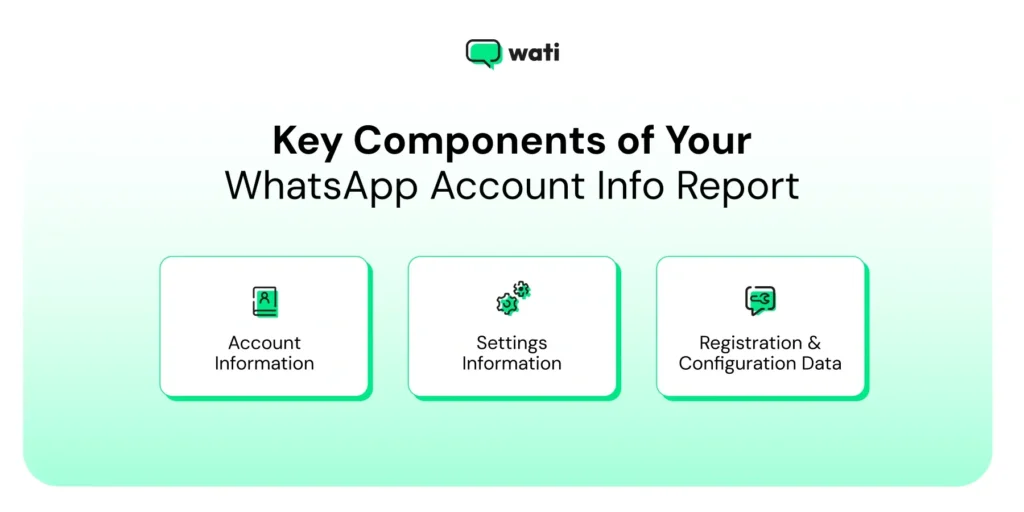
Account Information
- Registered phone number
- Profile name
- Account creation date
- Device and app version
Settings Information
- Privacy preferences (Last Seen, Profile Photo visibility, etc.)
- Blocked contacts list
- Active groups
- Linked companion devices
WhatsApp Business Details (Business Users)
- Business name and description
- Business hours and contact info
- Linked Meta Business Account or Facebook Page
Registration & Configuration Data
- Country and registered number
- Profile photo metadata (not the image itself)
- Web or desktop login history
Data That’s Not Included
- Chat messages or attachments
- Call logs or media files
- Message timestamps or contact names
These remain end-to-end encrypted, meaning even WhatsApp can’t access them.
How to Delete or Protect Your WhatsApp Info Report?
Once you’ve downloaded your WhatsApp Account Info Report, it’s important to handle it carefully.
The report contains sensitive data, so knowing how to delete or protect it matters.
Steps to Delete a WhatsApp Account Info Report
Open WhatsApp > Settings > Account > Request Account Info. If you see an option that says Delete Report, tap it and confirm. This will erase the file from your phone.
Steps to Secure Your WhatsApp Account Report
- Keep it in a password-protected or encrypted folder on your device.
- Avoid uploading it to cloud drives or sending it over email.
- If you use a business account, it’s best to let only your admin or compliance team handle the file.
For more on how WhatsApp handles your data, you can refer to the WhatsApp Privacy Policy.
Quick Fixes for Report Download Issues
Report not downloading or stuck midway?
These issues are usually easy to resolve. Keep reading for a few quick fixes to help you get your report without the hassle.
1. Missing Notification
Sometimes, the report takes a bit longer than expected to generate. Make sure you’re using the latest version of WhatsApp and that your phone stays connected to the internet until you receive the download alert.
2. Download Problems
A failed download usually means your device is low on storage or the link has expired. Free up some space, then try downloading the report again before the link disappears.
How to Know if Someone Blocked You on WhatsApp?
The WhatsApp Account Info Report won’t show if someone has blocked you, since it only contains your own account data. However, there are a few signs that may help you figure it out:
- No Last Seen or Online Status: You can’t see their last seen time or online activity anymore.
- No Profile Photo Updates: Their profile picture doesn’t appear or stops updating.
- Single Grey Tick on Messages: Messages you send never turn into double ticks, which means they’re not being delivered.
- Unable to Add to Groups: WhatsApp won’t let you add them to a group chat.
These clues usually mean the contact may have blocked you. Still, WhatsApp doesn’t explicitly confirm blocks to protect user privacy.
If your own WhatsApp account has been restricted or banned, check out our detailed guide on How to Unblock WhatsApp Account to understand the reasons and learn how to restore access safely.
What is the “Messaging Analytics” Section in a WhatsApp Account Info Report?
One part of the WhatsApp Account Info Report that many users overlook is the Messaging Analytics section.
This section provides high-level statistics about your WhatsApp activity. Instead of showing the content of your messages, it displays aggregate message counts such as the number of messages you have sent and received over time.
The Messaging Analytics section is designed to give users a summary of how their account is used, without exposing private conversations. This means the report focuses on activity data rather than the actual messages exchanged with contacts.
For individual users, this information simply provides a snapshot of messaging activity on their account. However, for businesses that rely on WhatsApp to communicate with customers, message analytics can become much more valuable.
For example, Wati provides deeper analytics that go beyond simple message counts. Businesses can track message delivery, read rates, response times, and campaign performance through a centralized dashboard. These insights help teams understand customer engagement and improve communication strategies.
While the WhatsApp Account Info Report gives a basic overview of messaging activity, business messaging platforms offer more detailed analytics to help companies manage conversations and scale customer communication more effectively.
Book a demo: Secure and analyse your WhatsApp data with Wati.
Take Control of Your WhatsApp Data
Most people never stop to check what data sits behind their WhatsApp profile. The Account Info Report changes that by giving you a simple way to review your details without exposing your private chats.
Taking a few minutes to go through it can help you understand how your account works and make sure everything is set the way you prefer.
FAQs: WhatsApp Account Info Report
1. What is included in the WhatsApp Account Info Report?
The report contains your account details such as phone number, profile name, privacy settings, device information, and linked devices. It does not include chat messages, call logs, or media files.
2. How can I request my WhatsApp Account Info Report?
Go to Settings > Account > Request Account Info, then tap Request Report. WhatsApp will prepare your report within a few days and notify you when it’s ready to download.
3. How long will my report be available for download?
Once your report is ready, it stays available for a limited time before being automatically deleted from WhatsApp’s servers.
4. What should I do if something looks suspicious in my report?
If you notice an unfamiliar device or group, unlink the device, turn on two-step verification, and review your privacy settings.
5. Can I find out if someone blocked me through this report?
No, the Account Info Report does not reveal blocking information. To check, look for signs like missing “last seen,” no profile photo updates, single grey ticks, or the inability to add the person to a group.
6. Can I request a WhatsApp account info report for a WhatsApp Business account?
Yes. Both regular WhatsApp and WhatsApp Business app users can request an account info report from the app’s settings. The report will contain similar account-related information for that number.
Frequently asked questions
1. What is included in the WhatsApp Account Info Report?
The report contains your account details such as phone number, profile name, privacy settings, device information, and linked devices. It does not include chat messages, call logs, or media files.
2. How can I request my WhatsApp Account Info Report?
Go to Settings > Account > Request Account Info, then tap Request Report. WhatsApp will prepare your report within a few days and notify you when it’s ready to download.
3. How long will my report be available for download?
Once your report is ready, it stays available for a limited time before being automatically deleted from WhatsApp’s servers.
4. What should I do if something looks suspicious in my report?
If you notice an unfamiliar device or group, unlink the device, turn on two-step verification, and review your privacy settings.
5. Can I find out if someone blocked me through this report?
No, the Account Info Report does not reveal blocking information. To check, look for signs like missing “last seen,” no profile photo updates, single grey ticks, or the inability to add the person to a group.
6. Can I request a WhatsApp account info report for a WhatsApp Business account?
Yes. Both regular WhatsApp and WhatsApp Business app users can request an account info report from the app’s settings. The report will contain similar account-related information for that number.
Related posts
- WhatsApp Business Calling Pricing in 2026: What It Actually Costs and Why Most Estimates Get It Wrong
Most WhatsApp Business Calling pricing guides skip two of the three cost layers. Here’s the full breakdown with 2026 rates, country tiers, and worked examples.
- How to Close More Deals with WhatsApp Calling on Wati
Learn how to use WhatsApp Calling on Wati to connect with warm leads, record every conversation, and track what’s working without leaving your chat inbox.
- Connect Your WhatsApp AI Agent to HubSpot, Salesforce, and Zapier Through a Single Deployment
Astra by Wati allows you to build an AI agent once using natural language and deploy it simultaneously to WhatsApp, Web, and Voice. It features native integrations to sync leads and AI summaries directly into HubSpot and Salesforce, while supporting Zapier connections through built-in Webhooks and REST API actions. Introduction Building an AI agent that …
- WhatsApp Business Web: How to Use it for Your Business in 2026?
Learn how to set up WhatsApp Business Web, advantages, applications and key differences to ensure seamless marketing collaboration in 2026.

Ashwin Suthanthiraraj
Ashwin is a content marketer at Wati. He writes content that shows businesses how to talk to customers on WhatsApp for marketing, sales, and support. A lifelong storyteller, he’s always looking for fresh ways to make complex ideas simple. In his free time, he enjoys travelling, cooking new food, or playing with his dog.